Footage you can cut, from people who don’t shoot video.
When a client’s CEO or customer records on their phone, you get the file their phone made, in the orientation and resolution you asked for. Plus an MP4 that drops straight onto a timeline.
Q4 kickoff: welcome from leadership
3 videos · Link expires in 14 days
- q4-kickoff_marcus-bell_2026-09-25_original.mp4 3840 × 2160 · 30 fps 31 MB
- q4-kickoff_marcus-bell_2026-09-25_edit-ready.mp4 3840 × 2160 · 30 fps, constant 52 MB
- q4-kickoff_elena-ruiz_2026-09-25_original.mp4 1920 × 1080 · 30 fps 14 MB
- q4-kickoff_elena-ruiz_2026-09-25_edit-ready.mp4 1920 × 1080 · 30 fps, constant 22 MB
And 2 files from Sam Okafor
You can’t grade your way out of a bad file.
Once footage has been shrunk by a messaging app, shot sideways, or recorded at a wandering frame rate, the edit starts with repairs. CapSend fixes those problems before the file gets to you.
A copy that went through iMessage or WhatsApp, at a fraction of the quality the phone recorded.
The browser uploads the recording itself, as it records. No messaging app re-encodes it on the way.
A vertical clip for your 16:9 sequence.
You pick landscape, portrait, or square. On a phone, CapSend asks them to turn it before they can start.
Variable frame rate video that stutters or drifts out of sync in your editor.
Every video also comes as an edit-ready MP4 at a constant frame rate.
IMG_4471.MOV, final_v2.mov, and a folder of guesses about who’s who.
Files are named by request, person, and date, and grouped under the request.
Clips spread across six email threads and a shared drive.
Every video for a request is in one place, and one link hands you all of them.
Set the shot before they press Record.
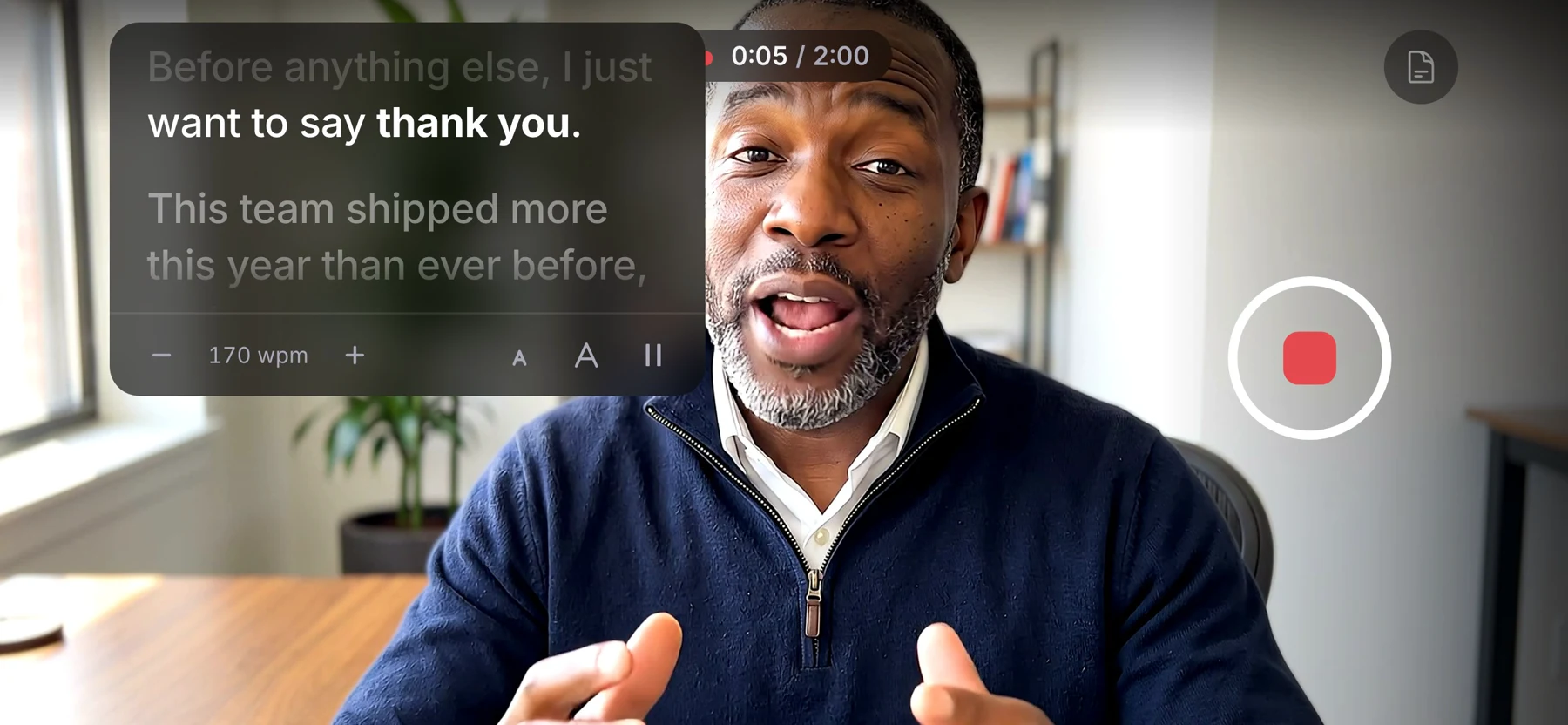
The person recording never sees a settings screen. You choose the format, quality, and length on the request, and their recorder is set up that way when they open the link.
- Format
- Landscape, portrait, square, or any. Square records the full frame with a square guide on screen, so you keep the headroom.
- Quality
- Standard (720p), High (1080p), or Maximum, up to 4K where their phone and browser support it.
- Length
- A maximum, and a minimum if you need one.
- Camera
- Front for a selfie, or back when someone else is holding the phone.
Know what you have before you download it.
Every video page lists its specs: resolution, orientation, frame rate, duration, codec, container, file size, and the device it came from. An automatic quality check reads the picture and sound.
The quality check flags
- Quiet, loud, or clipping audio
- No sound at all
- Silence to trim at either end
- A dark or blown-out picture
- Long black frames
- The wrong orientation
- Lower resolution than you asked for
- A length outside your limits

The original, and a copy that behaves on a timeline.
Phones and browsers record at a variable frame rate, which Premiere, Final Cut, and Resolve don’t always handle well. So next to the untouched original, CapSend makes an edit-ready MP4 you can cut without conforming first.
| Property | Original | Edit-ready MP4 |
|---|---|---|
| Video | Exactly what the device recorded | H.264, High profile, at the original resolution |
| Frame rate | As recorded, often variable | Constant, at the nearest standard rate from 23.976 to 60 fps |
| Rotation | As the phone stored it | Applied to the picture, so it opens upright |
| Audio | As recorded | AAC at 48 kHz, 320 kbps |
| Best for | Archiving, grading, and your own conversions | Dropping straight onto a timeline |
Original
- Video
- Exactly what the device recorded
- Frame rate
- As recorded, often variable
- Rotation
- As the phone stored it
- Audio
- As recorded
- Best for
- Archiving, grading, and your own conversions
Edit-ready MP4
- Video
- H.264, High profile, at the original resolution
- Frame rate
- Constant, at the nearest standard rate from 23.976 to 60 fps
- Rotation
- Applied to the picture, so it opens upright
- Audio
- AAC at 48 kHz, 320 kbps
- Best for
- Dropping straight onto a timeline
One link for the whole set.
Whoever sent the request can share the videos with you in a couple of clicks. You don’t need a CapSend account to watch or download them.
Send to an editor
- Choose originals with edit-ready MP4s, or originals only.
- Download one file at a time, or everything as a single zip.
- The link expires in 1, 7, 14, or 30 days, or never. Add a password if you want one.
- Whoever shared it gets an email when you first download.
Or get every video as it arrives
- Put your email in “Deliver to an editor” on the request.
- Every new video is added to your link, or only the approved ones.
- Get an email for each video, or one a day with everything new.
From request to timeline.
Send the request yourself, or have your client send it with your settings. Either way, this is how it goes.
-
1
Set it up
Create a request: landscape, Maximum quality, two minutes at most, and a script if there is one.
-
2
They record
They get a link by email or text and record in their browser. The video uploads while they record.
-
3
It arrives
You get an email when it’s in, and the video page shows its specs and quality check.
-
4
Approve or retake
If the light was bad, ask for a retake with a note. Their link opens again with your note at the top.
-
5
Cut it
Download the original or the edit-ready MP4, or let auto-delivery send it to you.
CapSend for other teams
- CapSend for marketing teams Scripts, reminders, and tracking for videos from busy people
- CapSend for customer marketing Customer stories and testimonials from busy B2B champions
- CapSend for customer support Testimonials and problem reports, recorded by customers
- CapSend for agencies Testimonials from your clients’ customers, ready for the edit
How CapSend compares
What you get from CapSend compared with the ways people send video now.
Start the edit with the right file.
Create a request, send the link, and download what their phone recorded.